In the design system
The rules live in the components.
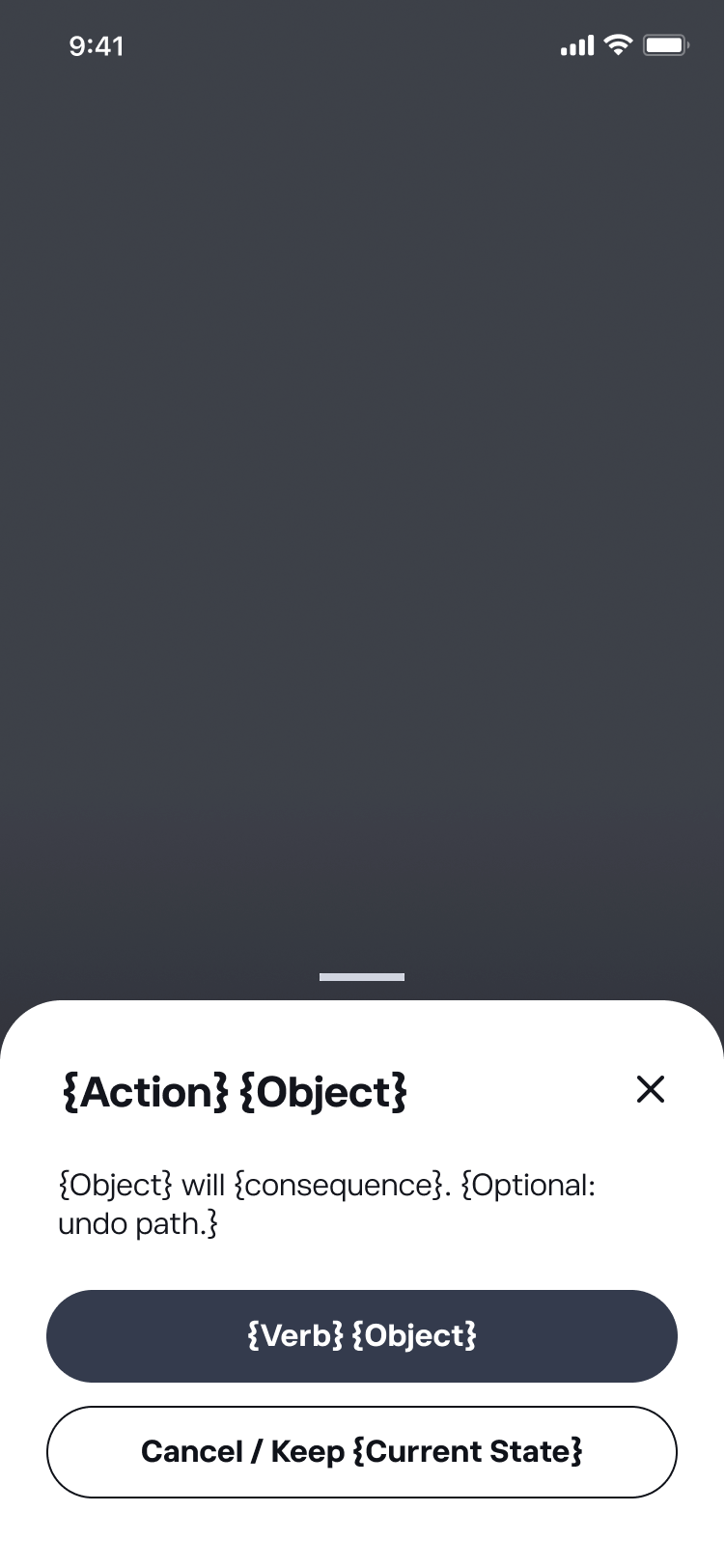
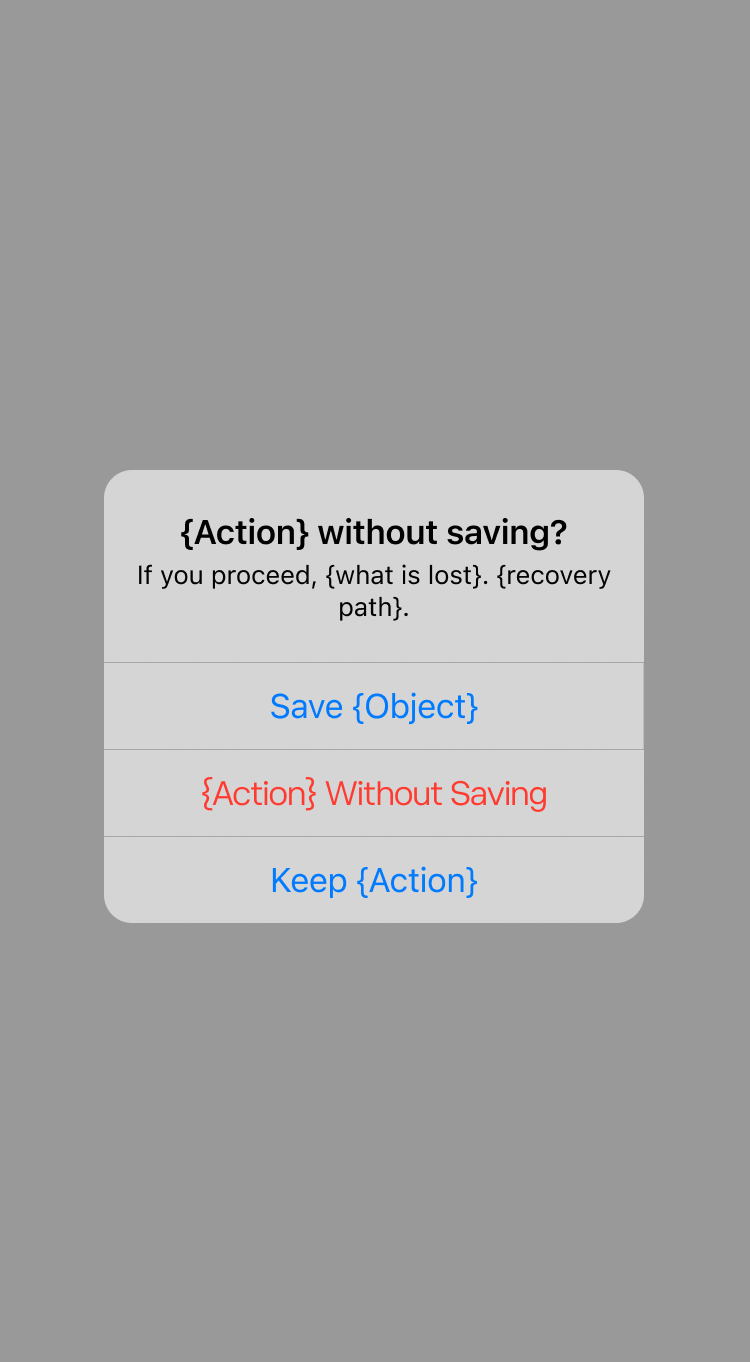
Every formula on this page is baked into the Figma component as the default placeholder text. When a designer drops a Toast or Modal onto a frame, they see the copy pattern before they see anything else — no external doc lookup, no leaving the file.
Toast Notification


Confirmation Modal
Unsaved Changes Dialog
Destructive Modal
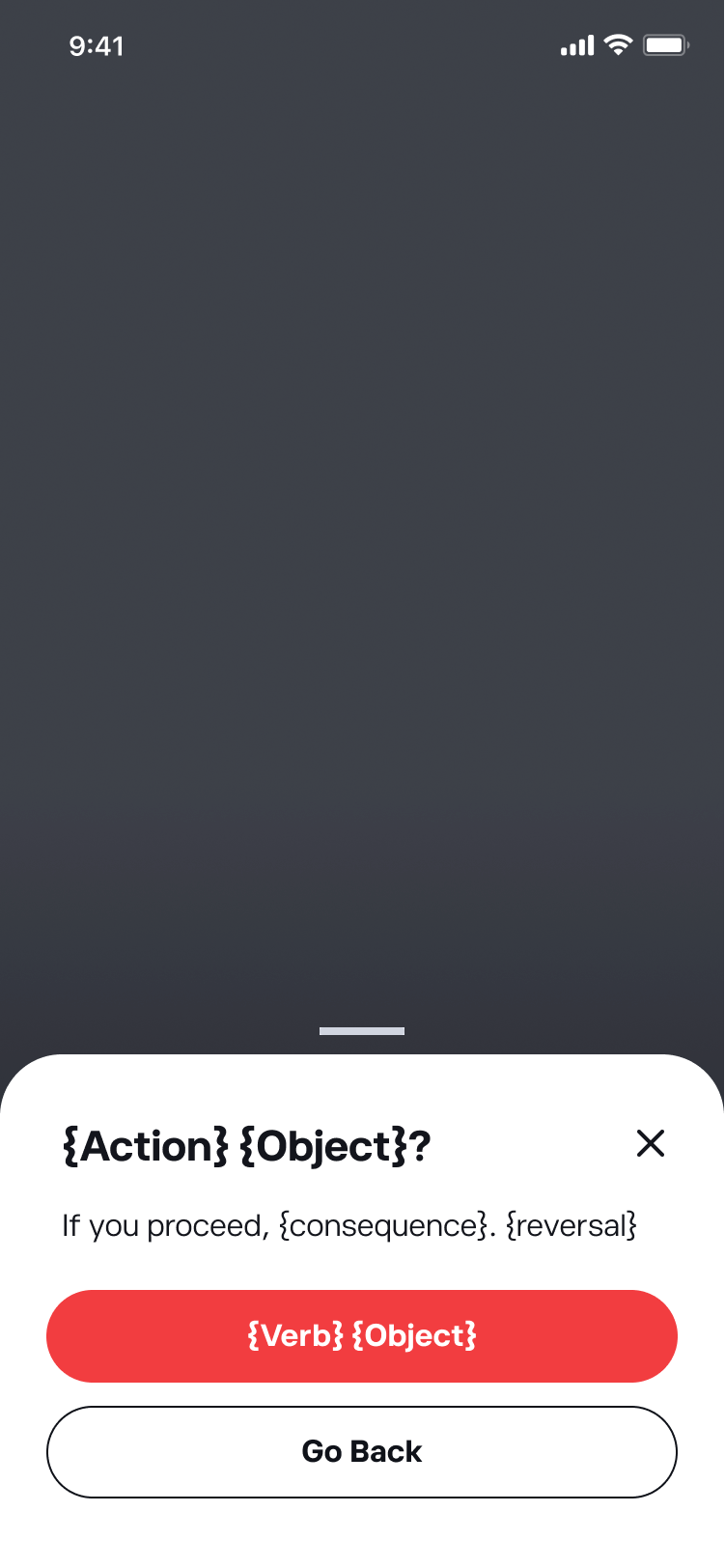
Component 1 · Friction L0
Toast Notification.
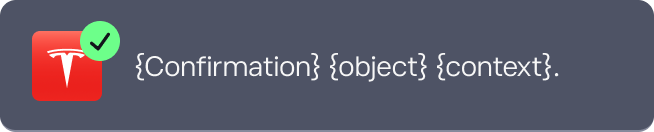
Used to confirm that an action is in progress, has completed, or has failed. Copy must be brief, factual, and matched to the current state of the action.
1.1Element specifications
In-progress message
Examples
- Receiving order for buy TSLA at market…
- Copying Nataly Dawn moves with $5,270.00
- Turning off notifications
Instructions
- Sentence case. Present continuous tense.
- Bold the key entity (asset ticker or person name) where one exists.
- Add an ellipsis only when the system is awaiting an external response.
- ConstraintDo not end with a full stop.
Confirmation message
Examples
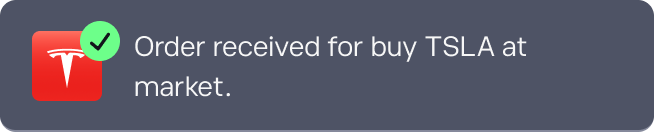
- Order received for buy TSLA at market
- You're now copying Nataly Dawn moves with $5,270.00.
- Notifications turned off
Instructions
- Sentence case. End with a full stop.
- Use past tense for discrete completed events ("Order received"); present tense for ongoing states ("You're now copying").
- Bold the key entity where one exists.
- ConstraintDo not repeat the in-progress message word for word.
Error message
Examples
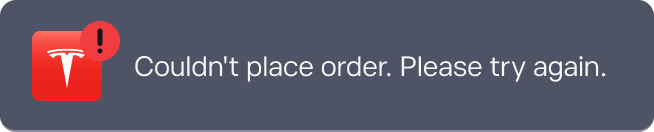
- Cannot reach internet. Please check your connection.
Instructions
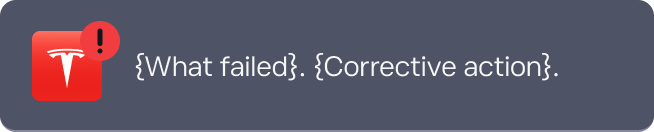
- Sentence case. Two sentences: state what failed, then tell the user what to do.
- ConstraintDo not use alarming language ("Error!", "Warning").
- ConstraintDo not omit the corrective action.
1.2When to use
| Situation | Toast? | If not, use instead |
|---|---|---|
| Action in progress (submitting an order) | Yes | — |
| Action completed successfully | Yes | — |
| System or connectivity error | Yes | — |
| Irreversible action requiring user to confirm intent | No | Destructive Modal |
| Input error requiring correction before submitting | No | Inline field validation |
| Status that must remain visible until the user acts | No | Banner or alert |
Component 2 · Friction L1
Confirmation Modal.
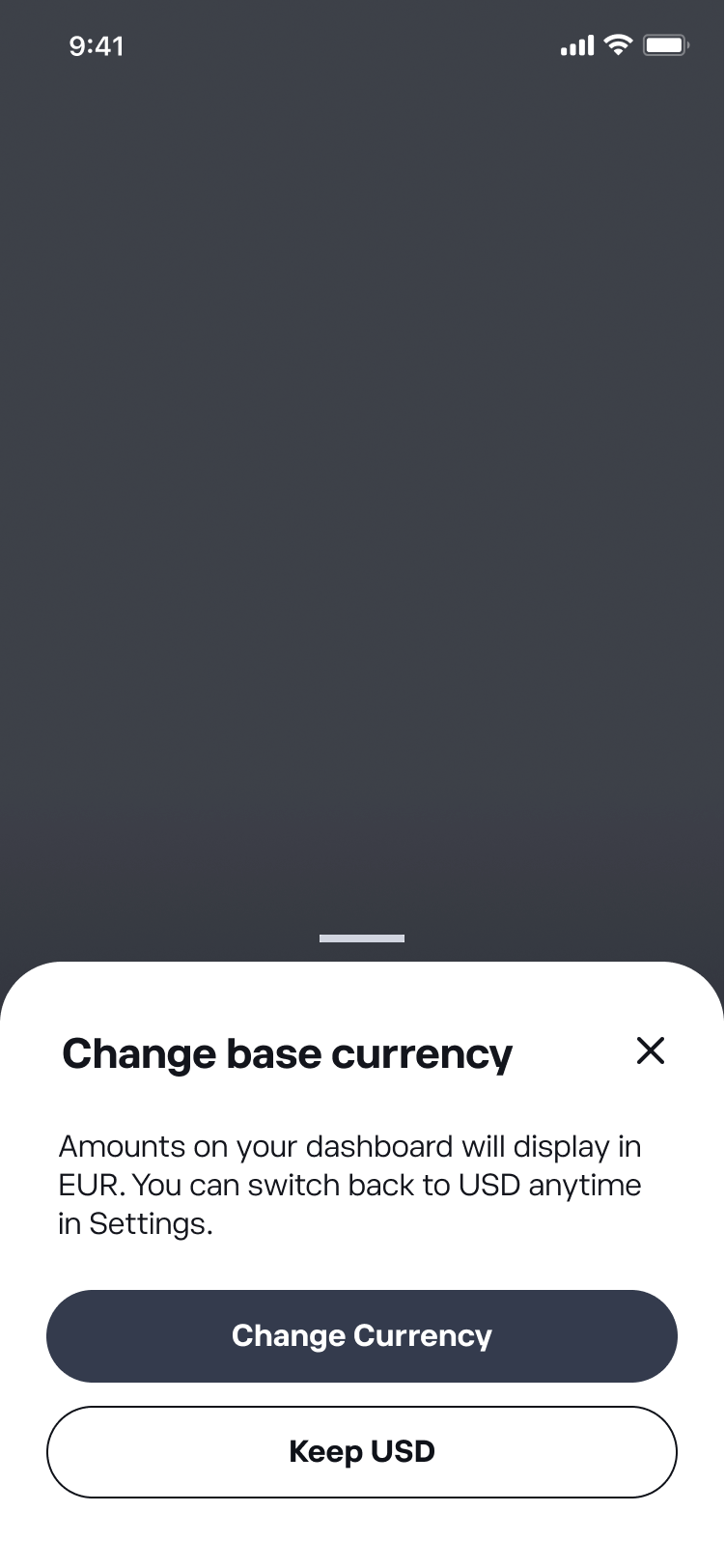
Used for significant but non-destructive actions that benefit from a moment of friction before executing. Unlike the Destructive Modal, these actions are reversible or carry no irreversible financial consequence. Copy must be clear and direct without creating unnecessary anxiety.
Share Portfolio
Your portfolio will be visible to all eToro users. You can make it private again at any time.
2.1Element specifications
Title
Examples
- Enable Notifications
- Share Portfolio
- Apply To All
Instructions
- Title case. 2–5 words.
- RequiredUse the same verb as the primary CTA. The title and button should read as one instruction.
- GuidanceUse dynamic variables when the object has a runtime quantity or identifier — e.g., "Apply To {3} Watchlists".
- ConstraintDo not use a question mark. That belongs to the Destructive Modal, where it signals a pause before an irreversible action.
Body
Examples
- Your portfolio will be visible to all eToro users.
- These settings will apply to all 3 watchlists. You can update them individually at any time.
- Your followers will receive a notification.
Instructions
- Sentence case. 1–2 sentences. State what will happen as a plain consequence — no conditional framing.
- GuidanceIf the action can be undone, explain how. Reduces hesitation, makes the modal feel lower-stakes.
- ConstraintDo not open with "If you proceed". That framing implies danger; reserve it for the Destructive Modal.
- ConstraintDo not write "Are you sure?" or repeat the title verb.
- ConstraintDo not include "This action cannot be undone." That line belongs exclusively in the Destructive Modal.
Primary CTA
Examples
- Enable Notifications
- Share Portfolio
- Apply To All
Instructions
- Title case. 2–4 words. Confirms the action.
- RequiredLabel must name the action. Never "Yes", "Confirm", or "OK".
- RequiredUse the same verb as the title. Title and primary CTA mirror each other exactly.
Secondary CTA
Examples
- Cancel
- Keep Private
- Keep Current Settings
Instructions
- Title case. 1–4 words. Closes the modal without executing.
- Guidance"Cancel" is acceptable here — unlike Destructive Modal — because the primary action is not itself a cancellation. Prefer a specific label ("Keep Private") when available.
- ConstraintDo not use "No". That positions the primary as "Yes"; CTAs must name actions, not answer questions.
2.2When to use
| Situation | Use here? | If not, use instead |
|---|---|---|
| Significant but reversible action affecting multiple items or accounts | Yes | — |
| Action that changes the user's public profile or visibility | Yes | — |
| Action that sends a communication on the user's behalf | Yes | — |
| Irreversible action or significant financial consequence | No | Destructive Modal |
| Navigation away from unsaved changes | No | Unsaved Changes Dialog |
| Low-stakes action easily undone inline | No | Allow inline + Toast if needed |
| Account-level settings changes that are trivially reversible | No | Allow & confirm with Toast |
Component 3 · Friction L2
Unsaved Changes Dialog.
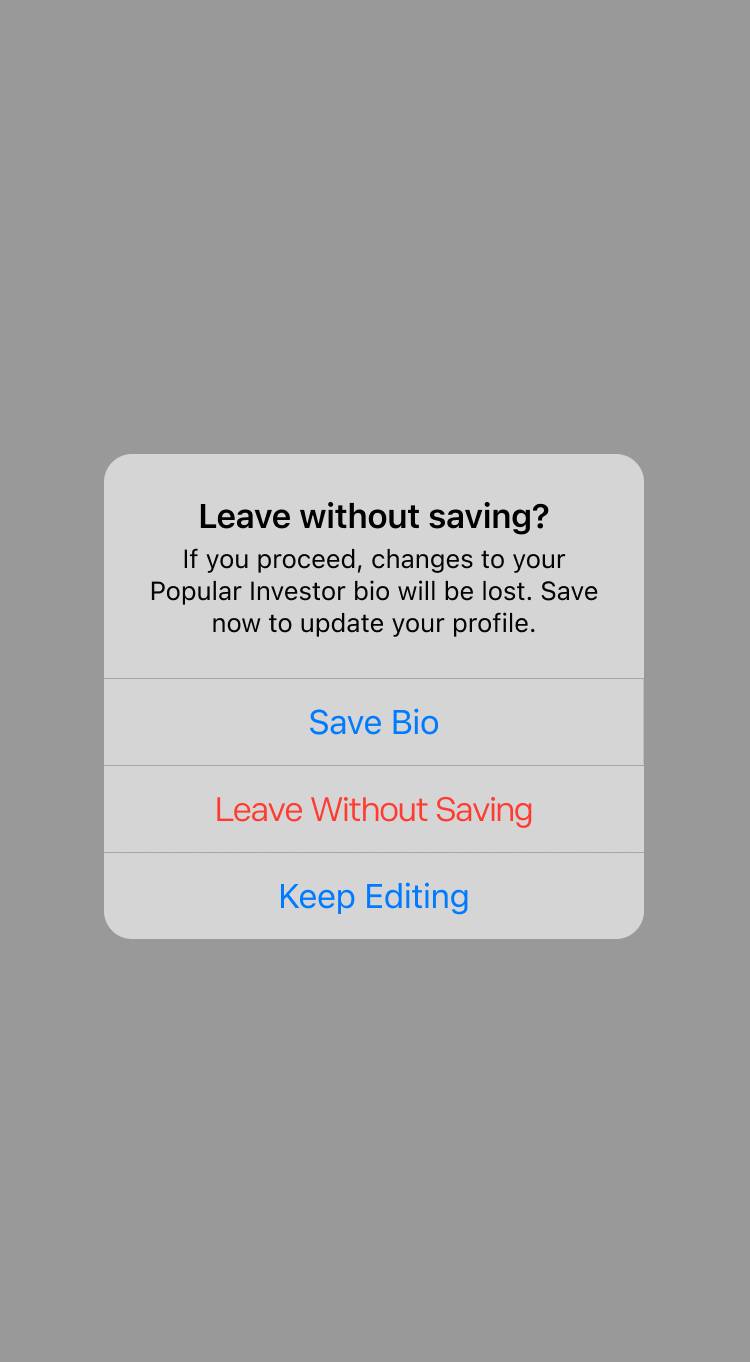
Used when a user attempts to navigate away from a screen with unsaved changes. Copy must clearly state what will be lost and give the user three distinct paths.
Leave without saving?
If you proceed, your changes will not be saved. To keep them, return to this screen and save.
3.1Element specifications
Title
Examples
- Leave without saving?
- Close without saving?
- Exit without saving?
Instructions
- Sentence case. Must end with "?". Three words.
- {Action} matches the navigation gesture that triggered the dialog (leave, close, exit).
- GuidanceDefault to "Leave without saving?" when the specific gesture is unclear.
Body
Examples
- If you proceed, your changes will not be saved. To keep them, return to this screen and save.
- If you proceed, your draft will be lost. This action cannot be undone.
Instructions
- Sentence case. 2 sentences maximum.
- {recovery path} is always required: either explain how to recover, or write "This action cannot be undone."
- ConstraintOpen with "If you proceed" — do not open with the title verb.
- ConstraintDo not write "Are you sure?" Neutral and factual only.
Primary CTA
Examples
- Save Changes
- Save Draft
Instructions
- Title case. Two words. Preserves the user's work.
- GuidanceUse the same object noun used elsewhere on the screen ("changes", "draft").
- ConstraintDo not use "Yes", "Confirm", or "Keep". Label must name the saving action.
Secondary CTA
Examples
- Leave Without Saving
- Close Without Saving
- Exit Without Saving
Instructions
- Title case. Three words. Mirrors the title verb to confirm original intent.
- ConstraintDo not use "Discard" as the sole label. Names the consequence, not the action.
- ConstraintDo not use "Cancel". This CTA confirms a navigation action, not a cancellation.
Tertiary CTA
Example
- Keep Editing
Instructions
- Title case. Fixed phrase. Closes the dialog and returns the user to the screen.
- ConstraintDo not use "Go Back", "Cancel", or "Stay". "Keep Editing" names what the user is returning to.
3.2When to use
| Situation | Use here? | If not, use instead |
|---|---|---|
| User navigates away from a screen with unsaved form or editor changes | Yes | — |
| User closes a modal or panel with unsaved changes | Yes | — |
| Auto-save is enabled and changes are already persisted | No | Allow navigation. Save confirmation Toast if needed. |
| User explicitly clicks a Discard or Delete control | No | Destructive Modal |
| Changes are trivial or easily re-entered (a single filter toggle) | No | Allow navigation without interruption |
Component 4 · Friction L3
Destructive Confirmation Modal.
Used for significant and/or irreversible actions requiring the user to confirm intent and understand the consequences. Copy must be neutral, factual, and specific.
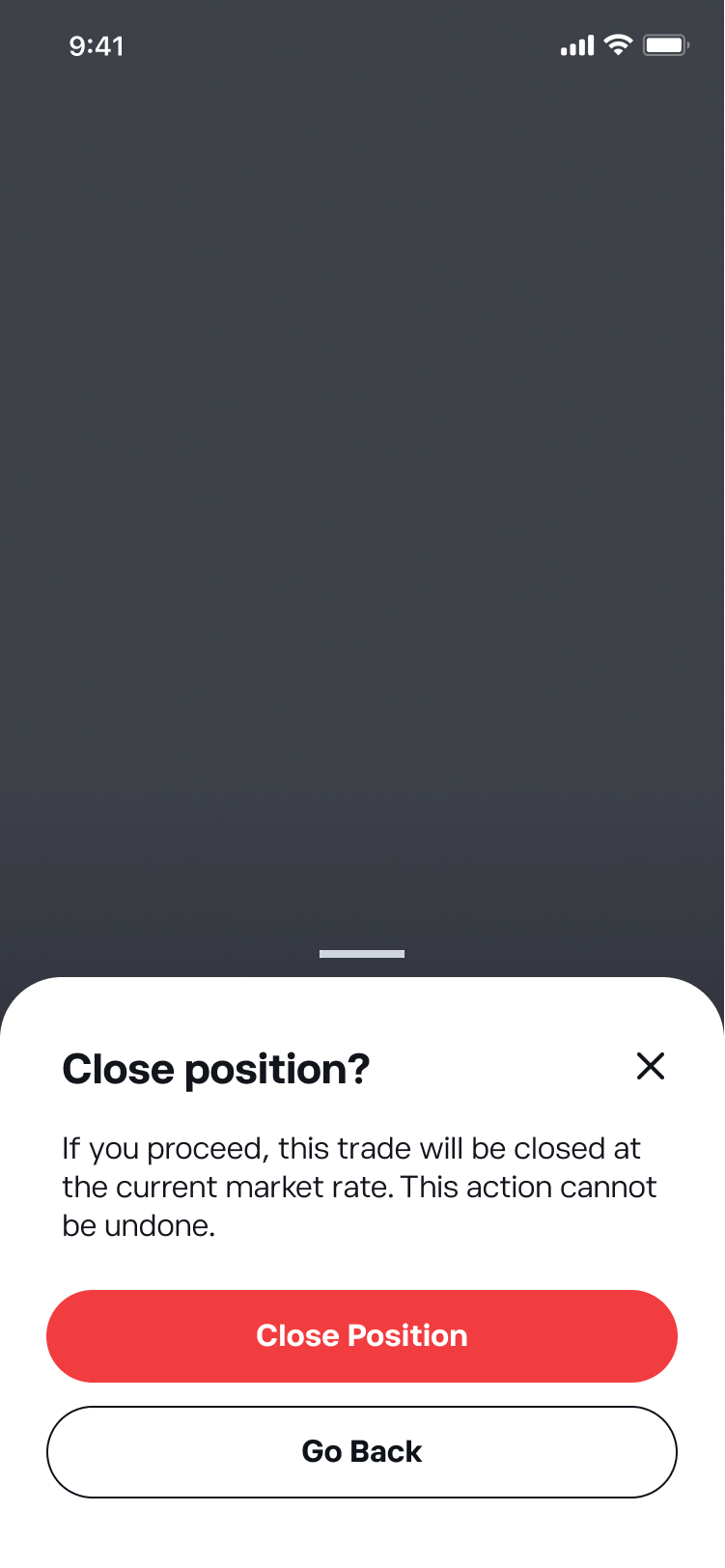
Close position?
If you proceed, this trade will be closed at the current market rate. This action cannot be undone.
4.1Element specifications
Title
Examples
- Close position?
- Close 2 positions?
- Cancel order?
Instructions
- Sentence case. Must end with "?". 3–4 words maximum.
- GuidanceInclude a quantity or name in the object when known at the point of action ("Close 2 positions?").
Body
Examples
- If you proceed, this order will be cancelled. To reopen it, place a new order.
- If you proceed, this trade will be closed at the current market rate. This action cannot be undone.
Instructions
- Sentence case. 2–3 sentences maximum.
- {reversal} is always required: either explain how to undo, or write "This action cannot be undone."
- ConstraintDo not repeat the title verb. Do not write "Are you sure?"
- ConstraintNeutral and factual tone only. Do not use alarming language ("Warning") or minimising language ("Just a heads up") — even when the consequence involves financial loss.
Primary CTA
Examples
- Close Position
- Cancel Order
- Withdraw Funds
Instructions
- Title case. 2–3 words. Red button — the only component that uses red.
- ConstraintDo not use "Yes" or "Confirm". Label must name the action.
Secondary CTA
Examples
- Keep Position Open
- Keep Funds
- Go Back
Instructions
- Title case. 2–4 words. Name what the user is keeping or returning to.
- GuidanceUse "Go Back" only when the modal was likely triggered by accident and context is clear from the screen behind it.
- ConstraintAvoid "Cancel" when the primary action is itself a cancellation. Creates "cancel a cancellation" ambiguity.
4.2When to use
| Situation | Use here? | If not, use instead |
|---|---|---|
| Irreversible action with significant financial consequences | Yes | — |
| Reversible but significant action (cancelling a pending order) | Yes (include undo path) | — |
| Low-stakes deletion (removing a saved filter) | No | Inline confirmation or Toast |
| Navigation away from unsaved changes | No | Unsaved Changes Dialog |
| Error prevention (invalid amount entered) | No | Inline field validation |